
 0
0
 0
0
A page, video, file, episode, or purchased work may appear normally on a website but remain missing from the corresponding mobile app. This does not always mean that synchronization has failed. The website and app may use different content catalogs, app editions, account profiles, age restrictions, or locally stored data.
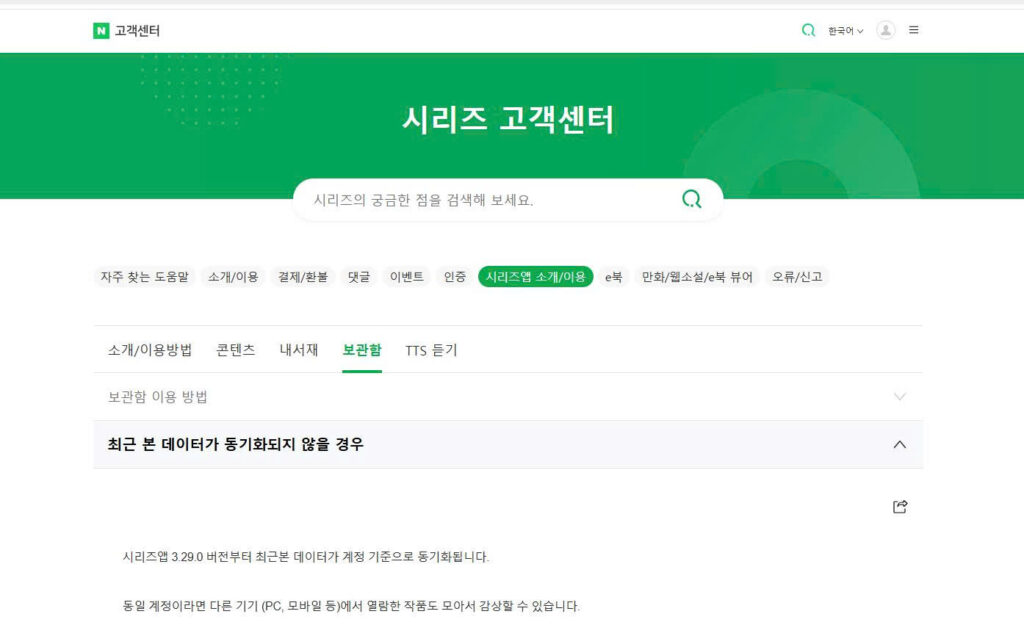
This distinction is particularly important for Korean services. NAVER Series states that recently viewed works are synchronized by account, but works available only in the complete edition do not appear in the regular edition’s recent list. NAVER SeriesOn also explains that its app displays only purchased content that is available for mobile use. In both cases, the missing item may reflect how the service is designed rather than an app error.
The fastest way to solve the problem is to identify what is missing before resetting the app or changing device settings.
Is One Item Missing, or the Entire Library?
Begin by checking the scope of the problem.
Search for the exact title in the app rather than relying only on the home feed. Try a distinctive keyword if the full title produces no result. Then open the app’s full library, purchase history, saved-content area, or recently viewed section.
Also test another item that you know should be available. This separates a content-specific restriction from a broader account or synchronization problem.
| What you see | Most relevant cause | Safest first action | When to escalate |
|---|---|---|---|
| The entire library is empty | Different account, profile, or login session | Confirm the account ID, login method, and active profile | The correct account is confirmed, but the library remains empty |
| Only one title is missing | App edition, age rating, mobile availability, or licensing | Search the exact title and open the same page in a mobile browser | Official information says the title should be available in the app |
| Purchased content is missing | Purchase entitlement or a different library section | Review purchase history and the service’s official restoration process | The purchase is valid but is not recognized in the app |
| Only recently added items are absent | Outdated app data or an indexing delay | Refresh the library, close the app, and install updates | The service gives no delay notice and the problem continues |
| The item works in a phone browser but not in the app | App-specific catalog, filter, or stored data | Confirm the app edition, filters, and content restrictions | No documented app limitation explains the difference |
Do not assume that an item has been deleted simply because it is absent from the main feed. Recommendation screens often show only a selected portion of the available catalog. The full search or library view is more useful for diagnosis.
The Same Email Does Not Always Mean the Same Access
The next step is to verify the identity and access level being used on both platforms.
Confirm how the account was originally created. Email, mobile number, NAVER, Kakao, Google, and Apple sign-in methods may open different accounts when they were registered separately. Compare the account identifier shown on the website with the one displayed in the app instead of relying only on a familiar profile name.
The active profile also matters. A household, child, adult, or age-verified profile may have a different catalog. On Apple devices, Screen Time can restrict purchases, apps, explicit media, movies, television programs, books, and web content according to the configured settings and age level.
For Korean content services, verify four details:
- The account identifier and login method
- The active profile and age-verification status
- The subscription or purchase entitlement
- The exact app edition being used
NAVER Series provides a useful example. Although recent-view data is synchronized for the same account, complete-edition-only works are not shown in the regular edition’s recent-content area. Switching accounts repeatedly would not solve that catalog difference.
Do not immediately upgrade a subscription or buy the content again. First confirm through the service’s current help center whether a web purchase should appear in the app and whether there is an official “restore purchase,” “recover library,” or entitlement-refresh function.
When the App Is Still Showing an Older Library
When the account and content eligibility appear correct, the app may be displaying an older locally stored version of the library.
Use a low-risk sequence and test the result after each step:
- Confirm that the app has a stable connection. Try switching once between Wi-Fi and mobile data.
- Refresh the content list, then fully close and reopen the app.
- Update the app from its official store. Check for an operating-system update if the service requires a newer version.
- Sign out and back in only after confirming that important drafts, notes, progress, or downloads are safely synchronized.
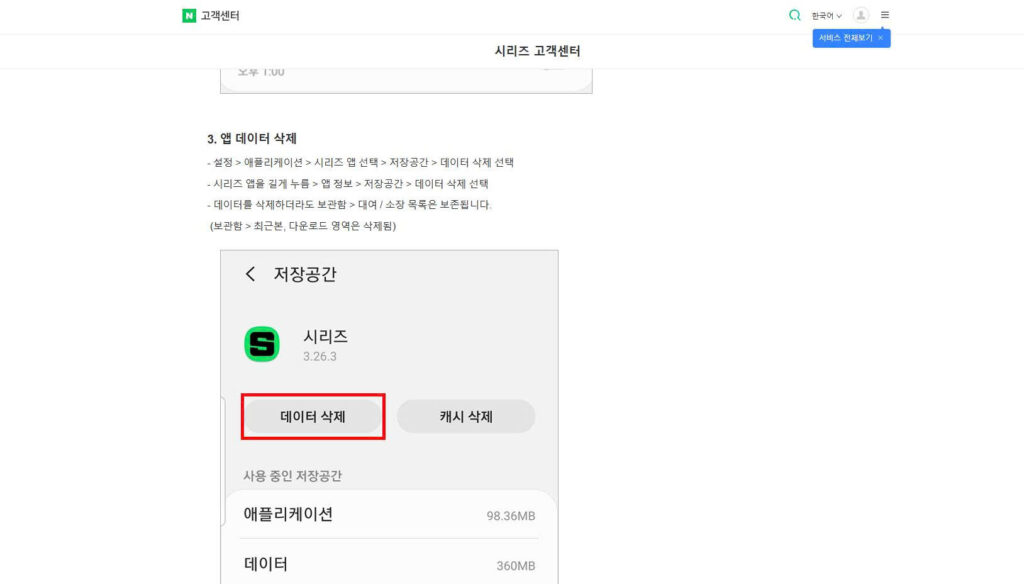
- Clear app data, reset the app, or reinstall it only when the service’s official instructions recommend doing so.
Android’s general troubleshooting guidance recommends checking for app updates and force-stopping a malfunctioning app, while noting that menus can vary by device manufacturer. Microsoft’s OneDrive instructions go further for that specific product by recommending force stop, data and cache clearing, uninstallation, and reinstallation. These product-specific differences are why destructive reset steps should not be presented as a universal first solution.
There is no reliable universal rule that website-to-app synchronization should complete after 24 hours. Some services update immediately, while others use separate publishing or indexing processes. Mention a waiting period only when the service officially documents one or reports an active incident.
Some Content Is Intentionally Excluded From the App
If refreshing and account checks do not solve the issue, the content may not be part of the app’s catalog.
Common service-specific explanations include a separate standard or complete app edition, content-rating restrictions, mobile distribution rights, unsupported file formats, regional licensing, or a publisher decision to keep a particular archive or interactive feature on the website.
Digital books and documents can create a related but different issue: the item may be present in the app but displayed through another reading mode or layout. PDF and EPUB Layout Changes Across Screen Sizes explains why pagination, navigation, text placement, and image scaling may differ between a website and a mobile device. Check the library entry, file type, table of contents, and in-app search before concluding that the work is unavailable.
NAVER SeriesOn, for example, states that its app shows purchased movies and broadcasts only when those items are available for mobile use. Therefore, an empty app list does not necessarily mean that the purchase has disappeared from the account.
Region settings deserve particular caution. Do not change the App Store or device country simply to test whether an item appears. Apple’s current guidance says that changing an account country or region may require using the remaining account balance, cancelling subscriptions, waiting for rentals or memberships to end, and adding a valid payment method for the new region. Apple also notes that some content may be unavailable after the change.
A region change should therefore be considered only after the service officially confirms that the content is restricted by account region and the user has genuinely moved or otherwise meets the service’s conditions.
Before Reinstalling, Protect Data Stored Only on the Phone
Reinstallation is often suggested too early. It may refresh the app, but it can also remove information that has not reached the service’s server.
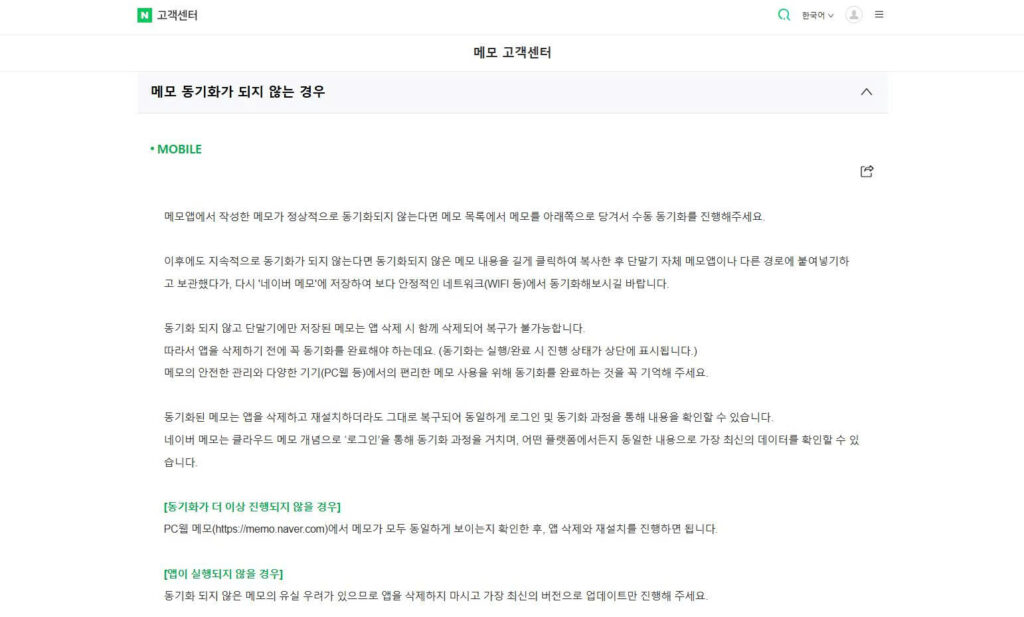
Before deleting app data or uninstalling, verify that important material is visible on the website or another synchronized device. Pay particular attention to drafts, notes, bookmarks, reading progress, offline edits, manually created lists, and files waiting to upload.
NAVER Memo explicitly warns that notes stored only on the device and not synchronized are deleted with the app and cannot be recovered. Its official guidance recommends copying unsynchronized text elsewhere and confirming that the notes appear on the PC website before reinstalling.
This does not mean every app will lose all local information. The risk depends on the service. The essential step is to distinguish replaceable downloads from unique data that exists only on the phone.
When Troubleshooting Should Stop
Repeatedly clearing data, reinstalling, or changing settings is unlikely to help when an official help page confirms that the item:
- Is available only on the website
- Belongs to another app edition
- Is not licensed for mobile use
- Is blocked for the current profile, age level, or account region
- Requires a different subscription or verified entitlement
Use the website as the valid access method when the difference is intentional.
Contact customer support when the content should be available, the account and profile match, the app is current, and the safe refresh steps have failed. NAVER Series similarly directs users to support when account-based recent-view synchronization still fails after the app has been updated.
A useful support request should include the content title, website page, test time, phone model, operating system, app version, screenshots of both results, masked account identifier, active profile, and relevant purchase information. Never send a password, full card information, resident registration number, or an unredacted identity document.


